Manage multiple project dashboards on Mac
Organise GitHub, Vercel and other connections by project in MakerNotch. Switch product context from your Mac without rebuilding your dashboard routine.
Last updated:
Home / MakerNotch guides
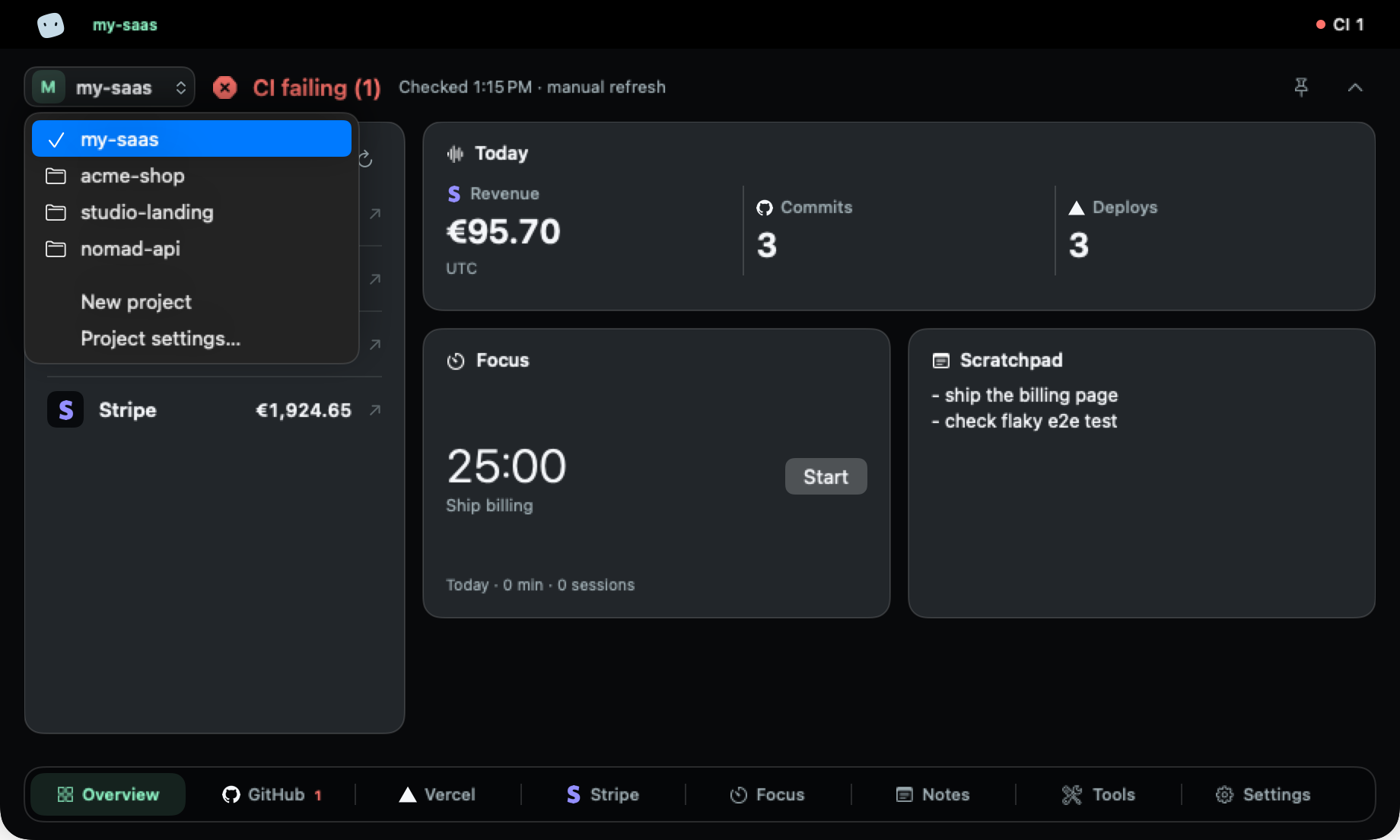
Give every product its own context
When you maintain several products, a quick check can become a sequence of account selectors, repository tabs and deployment dashboards. The difficult part is often remembering which product each screen belongs to.
MakerNotch groups connections by project. Select a product, inspect its status, then switch to another product from the project selector. This makes it useful for independent developers and small studios maintaining several shipped projects on a Mac.
Start with two clearly named projects
Imagine Orbit is your main SaaS and Bloom is a new product. Create separate projects with recognisable names. Configure Orbit’s repository and Vercel connection while Orbit is selected. Then switch to Bloom and configure its own connections.
Open the selector and switch back to Orbit. Check the repository and deployment labels to confirm that you are looking at the intended product. This small verification is more useful than connecting every available service on the first day.
Add signals in the order you use them
- Start with code and delivery: GitHub and Vercel answer different questions about a change.
- Add a payment connection such as Stripe when revenue is something you need to check for that product.
- Add an error or infrastructure integration when it helps you decide what needs attention.
- Leave unrelated integrations disconnected. A project view should reflect the product you actually maintain.
Tokens are saved in the macOS Keychain for the project. The configured credentials determine what each provider allows the app to read. MakerNotch does not bypass account permissions or automatically connect all accounts you own.
Switching projects is not switching browser sessions
Once the connections are configured, checking another project in MakerNotch does not require logging out of your browser dashboard first. Opening the provider’s website is different: that website still uses its own browser session and authentication.
The app’s automatic refresh setting applies to the selected project. Do not interpret project organisation as an always-on monitoring service for every product at once. Provider limits and connection errors still matter.
A practical daily check
Select your main product, check its pull requests and deployments, and open the provider only if something needs investigation. Move to the next product when you are ready. Notes and focus tools can support the work around those checks, while the project selector keeps the product context explicit.