Check Vercel deployments on your Mac
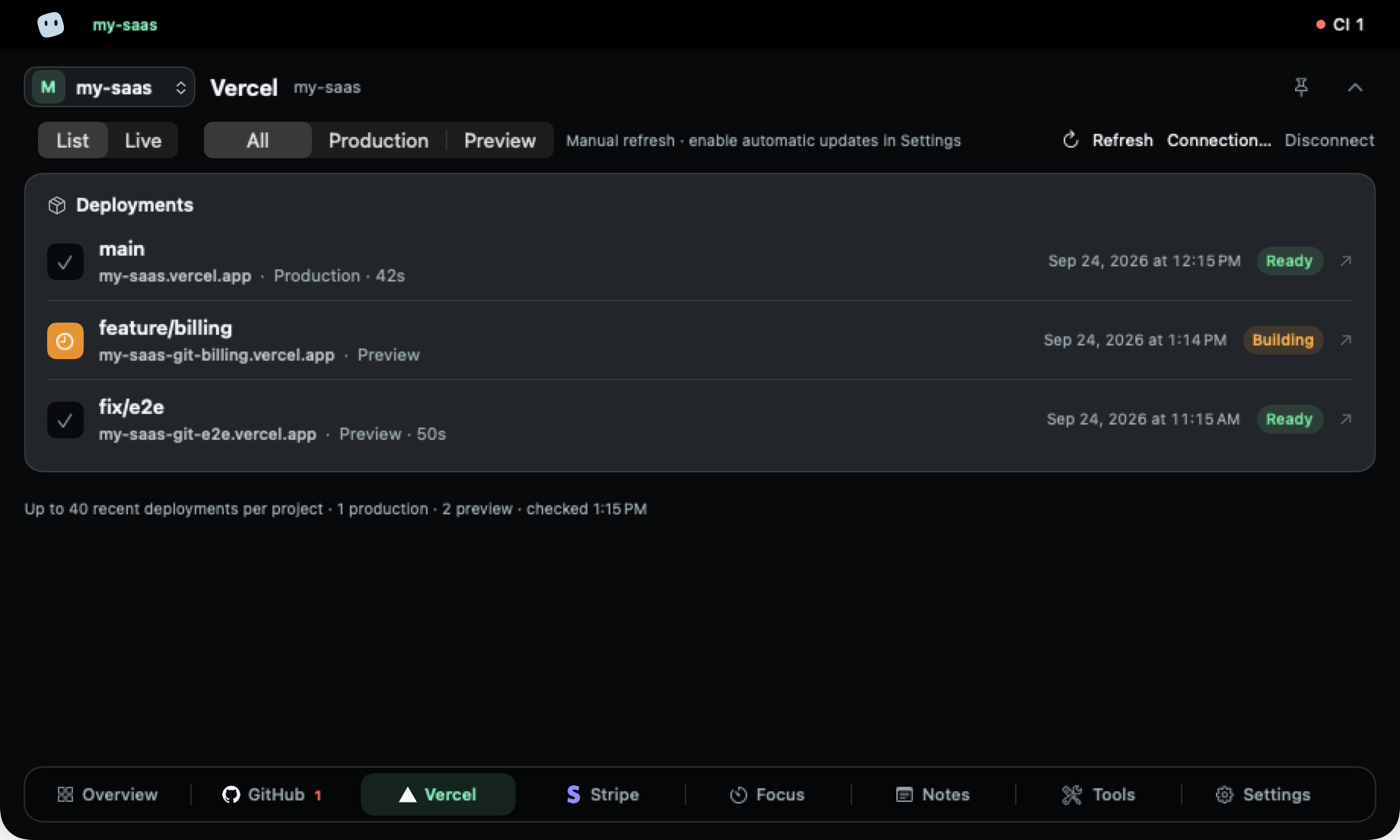
View recent Vercel deployments in MakerNotch. Keep Production and Preview separate and open the deployed site from your Mac workflow.
Last updated:
Home / MakerNotch guides
Answer the next question after a push
A successful build is only one part of shipping. You may also need to check whether the change reached the intended environment. MakerNotch gives Vercel deployments their own view, so you can inspect recent deployments without starting every check in a browser dashboard.
This is especially useful when a preview branch and the production site are both active. Check the environment and deployment state before opening the site. A successful preview does not tell you that production has changed.
Connect Vercel to the right project
- Select the MakerNotch project for the product you are deploying.
- Open the Vercel connection form in settings.
- Enter the access token and project details requested by the form. Use the appropriate team context if the Vercel project belongs to a team.
- Run the connection checks and save the configuration. MakerNotch stores the token in the Mac Keychain for the selected project.
- Open the deployments view and check the returned project and environment before relying on its status.
A MakerNotch project can have multiple configured Vercel projects. Give them recognisable labels so a frontend and a documentation site are easy to distinguish.
Production versus Preview
Use the Production and Preview filters to narrow the list to the environment you want to inspect. Production is the relevant view when checking the shipped site; Preview helps when checking work before it is promoted. Open the deployment when you need to inspect the actual page.
What this view does not prove
A deployment state is not a complete health check of your application. A site can deploy successfully and still have an application error. Use the original provider tools for detailed investigation and a monitoring integration for a different signal about production errors.
Refreshes are periodic or manual, depending on your settings. They can be delayed by sleep, network problems or provider limits. Check again when the state is old rather than treating it as a real-time guarantee.
Troubleshooting an empty deployment list
Confirm the configured project identifier, token access, team context and selected environment. A restrictive filter can hide deployments that belong to the other environment. If access was revoked, update the connection before retrying.