Check Cloudflare Pages deployments on your Mac
Check the branch, environment and deployment status for the project you are working on. Connect Cloudflare Pages once per MakerNotch project, then switch projects to see their deployments.
Last updated:
What you can checkCheck Pages deployments, branches and environments for the selected project.
Keep in mindThis integration covers Pages. Manage Workers, DNS and deployment settings in Cloudflare.
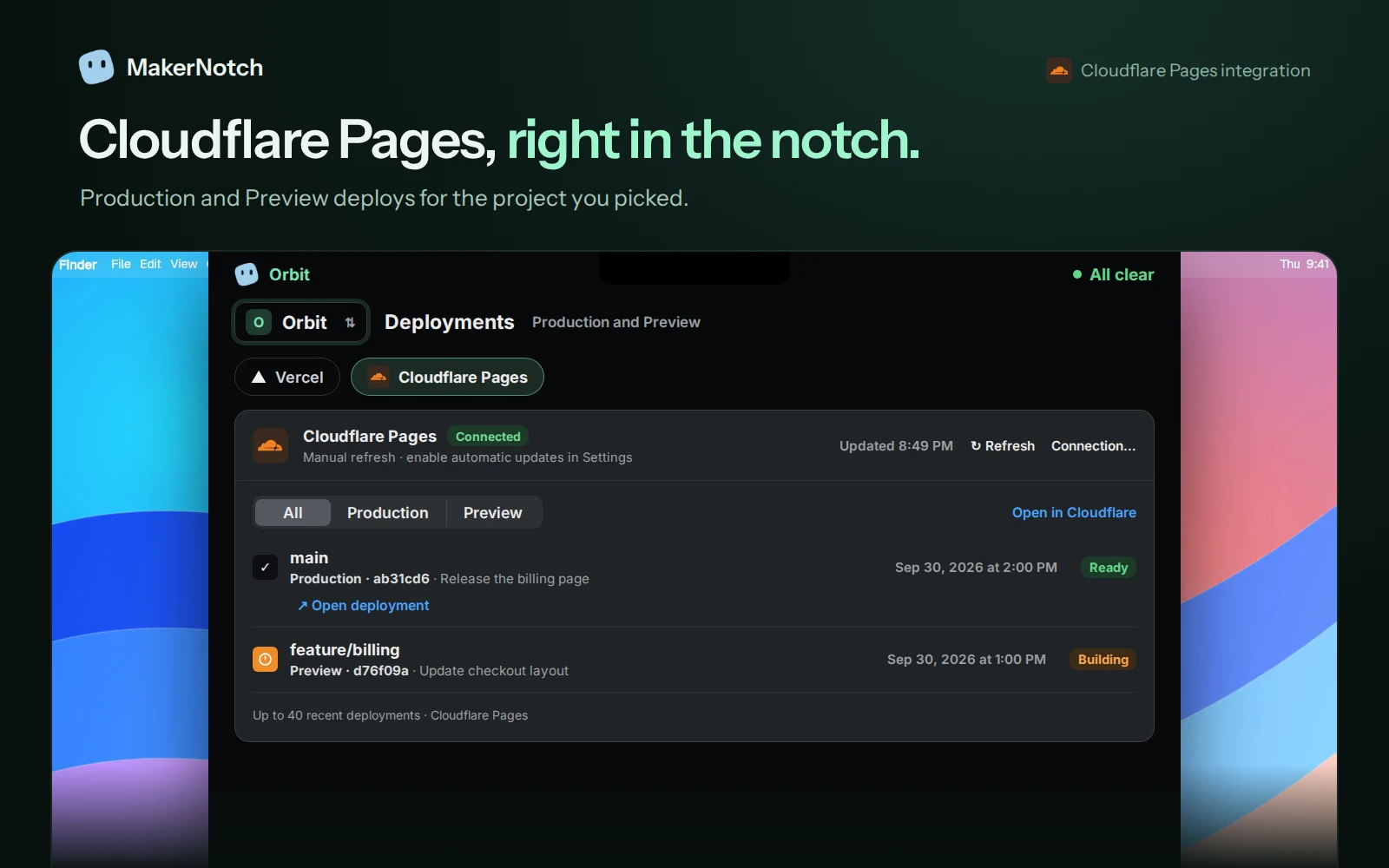
Check a deployment without hunting through dashboards
Open MakerNotch, select your project and choose Cloudflare Pages in the deployments view. Check the branch, environment and state together: a successful Preview does not mean your production website has changed.
You can open the deployment to inspect the page or use Open in Cloudflare for the provider dashboard. If you also use GitHub Actions, keep the repository connection in the same MakerNotch project to follow the relevant change.
Connect Cloudflare Pages
Start with an activated copy of MakerNotch and an existing Pages project. The installation guide covers installing and activating the app.
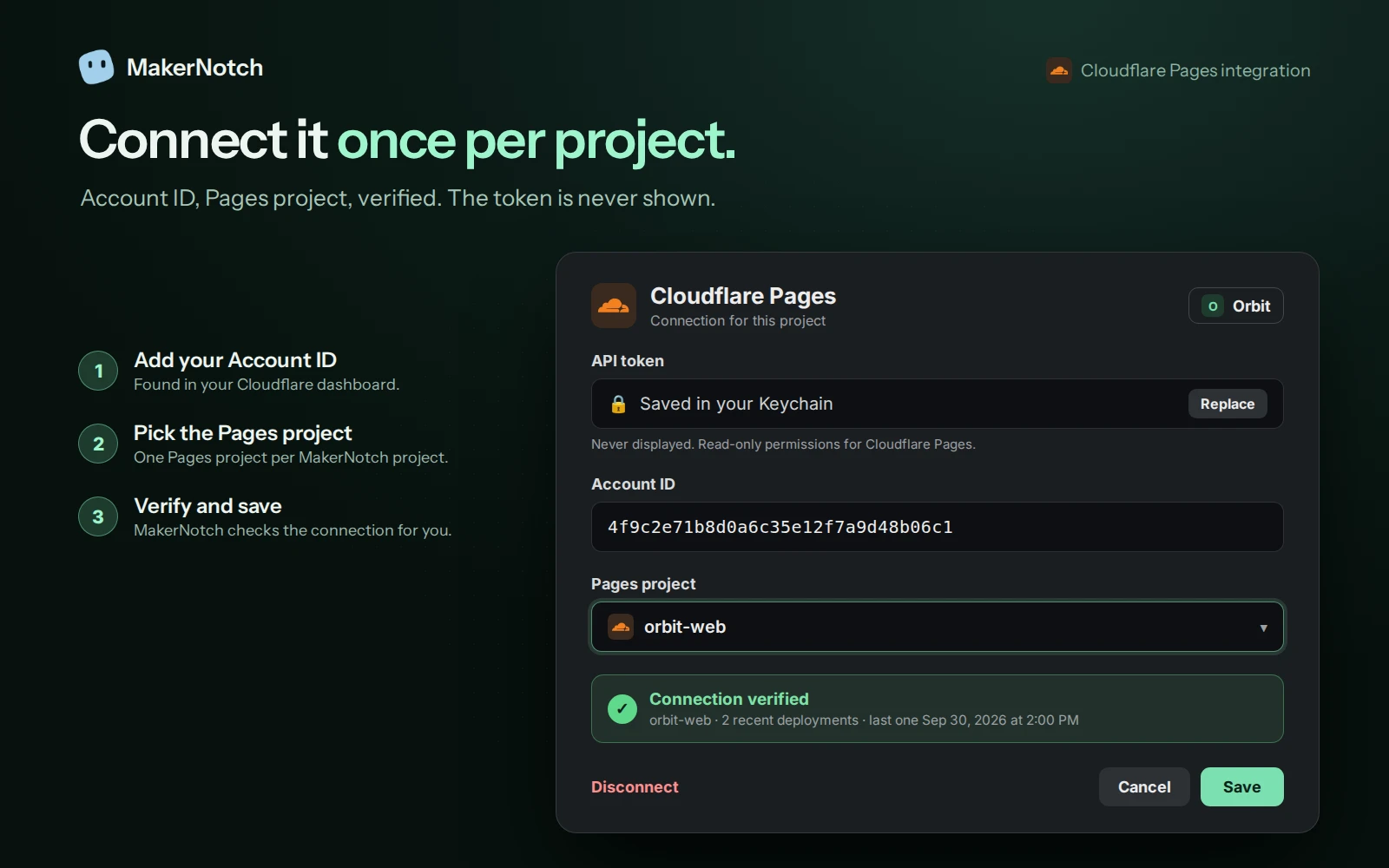
- Create a Cloudflare API token with Pages Read access for the intended account. Use a token rather than a Global API Key. Cloudflare documents the accepted permissions in its deployment API reference.
- Select the MakerNotch project you want to configure. Open Settings → Integrations, find Cloudflare Pages under deployments and open its connection form.
- Enter your token and the Account ID: the 32-character identifier of the Cloudflare account containing the Pages project, not a zone ID or a website URL.
- Choose Load projects, then select the Pages project. You can also enter its exact name manually.
- Choose Verify and connect. Once the connection succeeds, the token is stored in the macOS Keychain.
- Open Cloudflare Pages in the deployments view and confirm that the expected branch and project appear.
Each MakerNotch project connects to one Pages project. To keep separate products or accounts distinct, create separate MakerNotch projects and configure each connection.
Separate Production from Preview
Use All, Production or Preview to narrow the list. In the Orbit example above, main is a ready Production deployment while feature/billing is a Preview still building. Check the relevant commit before opening the page.
| State | Next step |
|---|---|
| Queued or Building | Wait for completion, or inspect progress in Cloudflare. |
| Ready | Open the deployment and test the change. A completed deployment does not prove the feature works. |
| Failed or Cancelled | Open Cloudflare to investigate the deployment details. |
MakerNotch reads deployment information. Build, retry, promote or change deployment settings through your existing workflow and Cloudflare.
Switch projects, keep the context
Suppose Orbit is your shipped product and Bloom is a new project. Select Orbit to check its Production deployment; then select Bloom to check its Preview. Their connections stay associated with their respective MakerNotch projects, so consulting them in the app does not require repeatedly signing in to provider accounts.
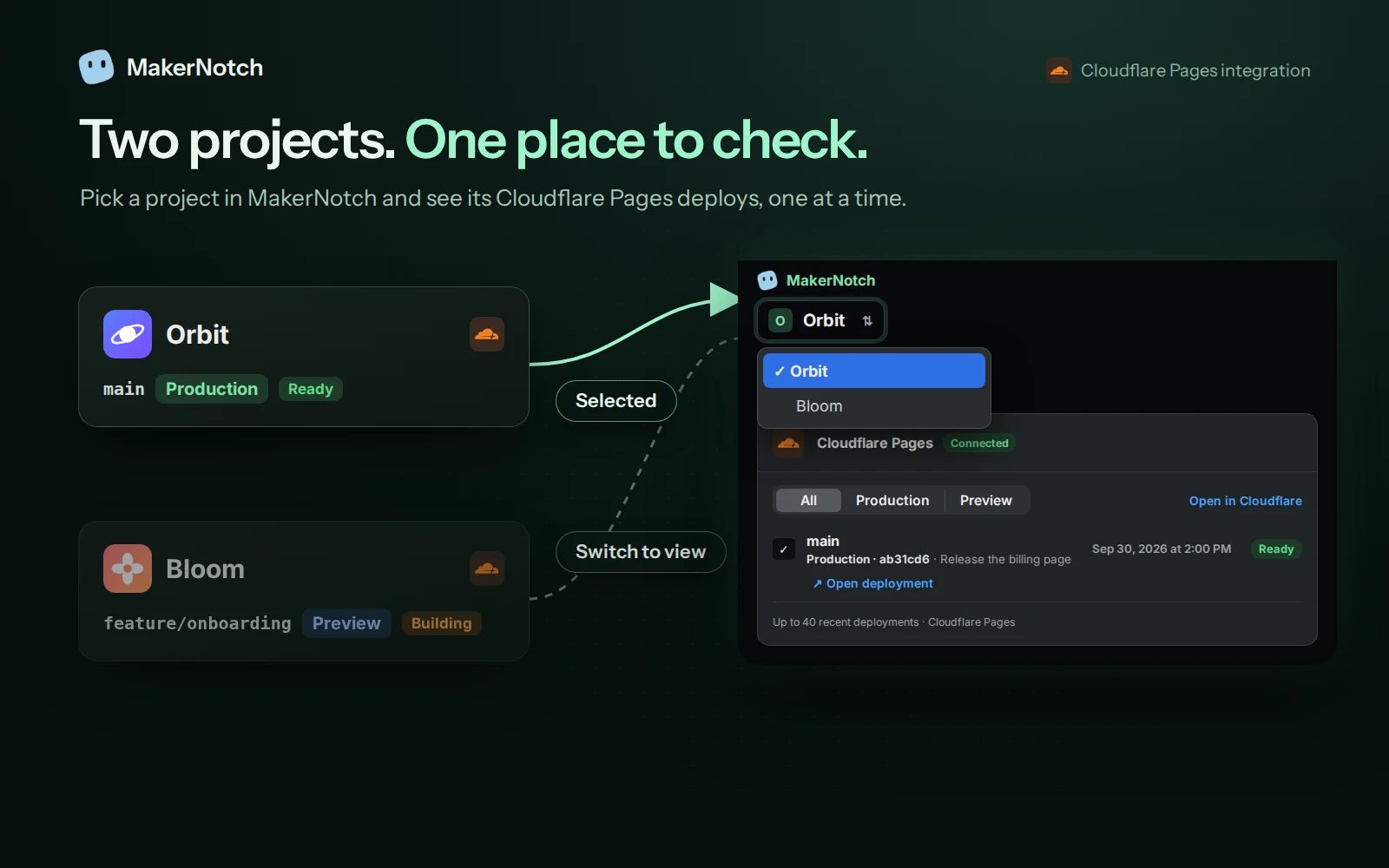
The panel shows the selected project, not a live combined view of every product. Links opened in your browser still use that browser’s session. See the multiple-project guide for the difference between project connections and browser profiles.
Fix a missing or outdated deployment
- Nothing under the selected filter: try All and confirm that you chose the intended project.
- An older deployment is missing: the view covers up to 40 recent Pages deployments. Use Cloudflare for older history.
- The project cannot be loaded: check Account ID, project name, token permissions and account access. You can enter the project name manually if discovery does not list it.
- The connection stopped working: check whether the token expired or was revoked and reconnect as needed.
- The list has not refreshed: refresh manually or enable automatic updates in Settings. Sleep, connectivity and provider limits can delay checks.
Automatic refresh follows the selected MakerNotch project. It is not an always-on uptime monitor across all your products.
Is this the right workflow for you?
If you only occasionally check one deployment, the Cloudflare dashboard may be enough. MakerNotch is useful when you routinely check deployments alongside CI, issues or revenue across projects. You can also connect Vercel for products hosted there.
Does this include Cloudflare Workers?
This integration covers Cloudflare Pages deployments. It does not provide a Workers dashboard.
Do I need a MacBook with a notch?
No. MakerNotch also works on compatible Macs without a physical notch. See installation and compatibility.